How to convert numbers to Excel with iCloud
If you have a Numbers file that you need to convert to an Excel document format, you'll be happy to know that you can easily do it from anywhere using iCloud. That means you can easily convert Numbers files to Excel documents from any Mac, Windows PC, Linux, iPhone, iPad or Android device.
In this article, we will cover how you can convert a Numbers file into an Excel document with iCloud. It is a totally free solution and works on any computer or device with a web browser.
How to convert numbers to Excel with iCloud
With iCloud, converting a Numbers file into an Excel spreadsheet is quite easy. A great advantage over this method is the fact that you don't need to install any additional software, since all you need is a web browser to access the iCloud web client. So without further ado, let's take a look at the necessary steps.
- Open any web browser that is installed on your device, computer or PC and go to iCloud.com. Enter your Apple ID details and click the arrow to log in to your iCloud account.

- You will be directed to the iCloud home page. Click on the "Numbers" application just below the Calendar.

- Here, you will see all the documents you created using Numbers. However, if you want to convert a document that is stored on your computer, you will first need to upload it to iCloud. Click on the "Upload" icon located at the top of the page.

- This action will open a window for you to browse folders. Select the .numbers file you want to access and click "Open" as shown in the screenshot below.

- The file will take a few seconds to load. Once done, click on the “triple dot” icon and click on “Download a copy”. This action will open a pop-up window on the screen.
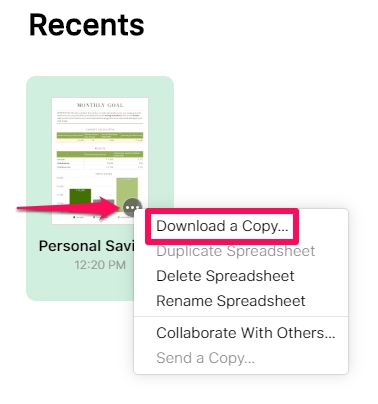
- Here you can choose the file format for the download. Just click "Excel" to download the document into an .xlsx file that can then be viewed and edited in Microsoft Excel. ICloud will take a few seconds to process the conversion and start the download.

- As you can see below, the downloaded document is in .xlsx format. You can find it in the download section of your browser. Click "Show in folder" to view the file in Windows Explorer or open it with Microsoft Excel.

That's it for converting documents from Numbers to Excel, which works with Microsoft Excel and many other spreadsheet applications, and remember that Excel is generally considered a supported Windows-Format. This web-based solution works similarly to Google Sheets, except of course it uses iCloud.com.
You can continue working on the spreadsheets you created using Numbers directly on any other device with Microsoft Excel, be it a Windows machine, Mac, Linux PC, Android, iPhone, iPad or anything else, now that it is in a compatible format , you can use it as you want. Once you're done working on it, you can reload it into iCloud and open it normally using Numbers on your Mac, iPhone, or iPad as well.
Considering how Numbers opens Excel spreadsheets like any other file, we are not quite sure why vice versa is not yet possible in Microsoft Excel, although we can expect it to change as Microsoft Office and Windows add support on the line.
In addition to the conversion capabilities offered by the iCloud web client, it can also be used to edit iWork documents on any device, provided you have a desktop-class web browser.
The next time, before transferring iWork files to your Windows machine, make sure you have a copy of the document in a Windows compatible file format to avoid a similar situation. For example, you can export your Numbers document as an .xlsx file directly to your MacBook or iPad, even before saving the document.
These solutions should be of great help to anyone who owns both Windows PCs and macOS devices like MacBook Pro or iMac with Dell or Lenovo, or even if they only work on platforms for school, work, or personal reasons. But with cross-platforms there are also occasional file compatibility issues as you switch between your computers or software. More specifically, if you use software like Numbers that is part of the iWork Productivity Suite, you may not be able to open those spreadsheets on your Windows machine using Microsoft Excel.
If you don't know, Numbers is Apple. It's equivalent to Microsoft Excel that multiple people use to create spreadsheets and other documents. However, Microsoft Excel cannot open a .numbers file, and iWork is not exactly available for Windows or Android devices. So if you create spreadsheets and other data on your iPhone, iPad or MacBook using Numbers for work related purposes then you will need to convert these documents to Windows compatible file format like .xlsx before you can view and edit them in Windows , Linux, Staroffice or Microsoft Office.
We hope that you have successfully converted your Numbers files into Excel spreadsheets to access them on a Windows laptop or desktop computer. What do you think of this practical tool on iCloud.com? Is it a feature you will use regularly to avoid file compatibility issues? Let us know your thoughts and opinions in the comment section below.


Comments
Post a Comment